Affiliate note: the deal buttons on this page are my referral links. If you sign up through them I may earn a commission, at no extra cost to you. How this site makes money.
Before you start
- You need to be new to Xero. The offers are for new organisations. If you already have one, see existing customers.
- Pick the right link for your country. UK and Malaysia use one link, everyone else the other. The deal button chooses for you, and you can switch under it.
- Have a card ready, but don't rush. The plan starts the moment you confirm. Check the discount first.
- Allow ten minutes. Most of it is waiting for the confirmation email.
The steps, screen by screen
This is the referral route (80% off for 6 months). The UK and Malaysia routes start on Xero's own site instead, but from the sign-up form onwards the screens are the same Xero checkout.
Open the referral link
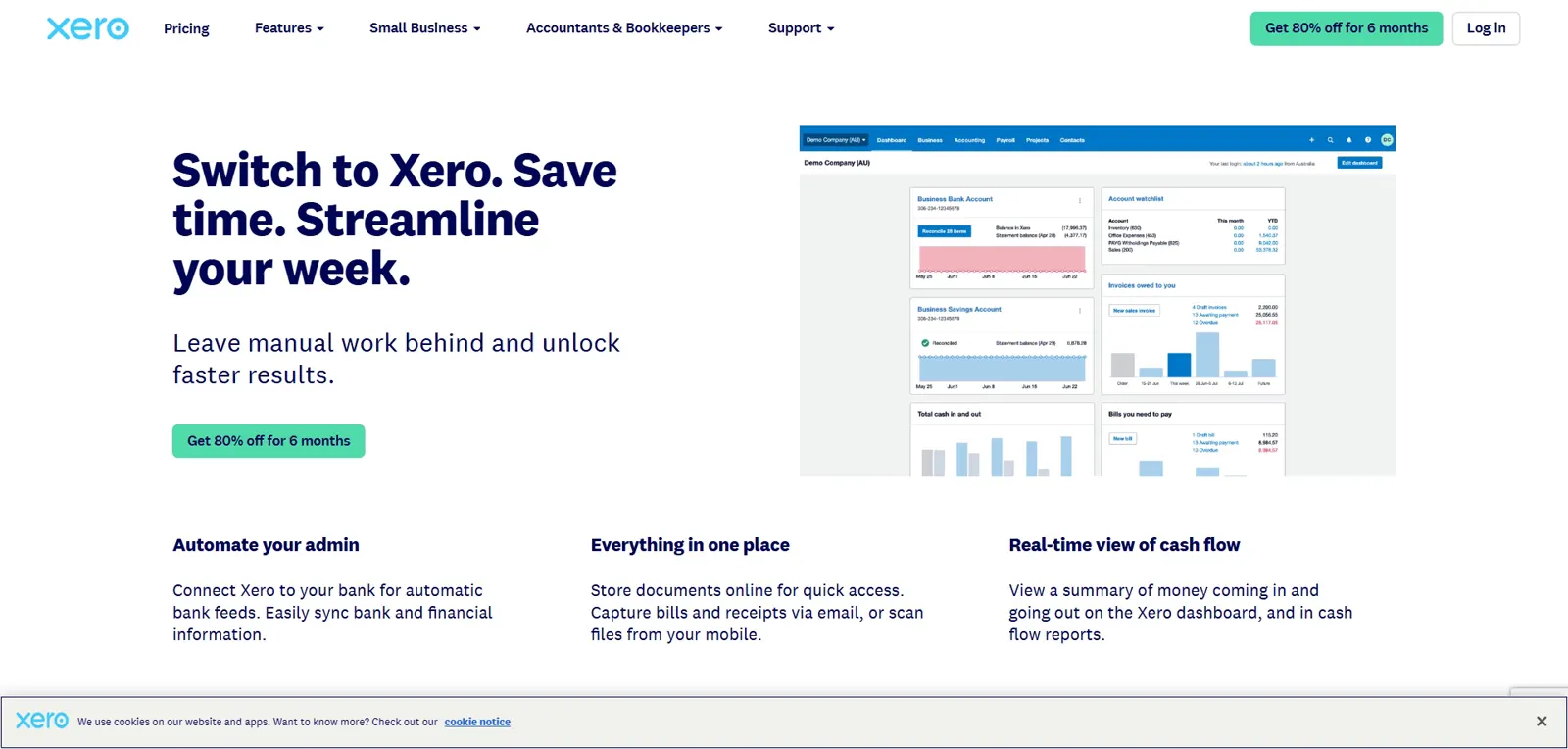
Click a Get 80% off button. It opens Xero's referral page, which says Get 80% off for 6 months. The green button at the top right says the same thing. My personal bookmarks and address bar are cropped out.
Read the offer details
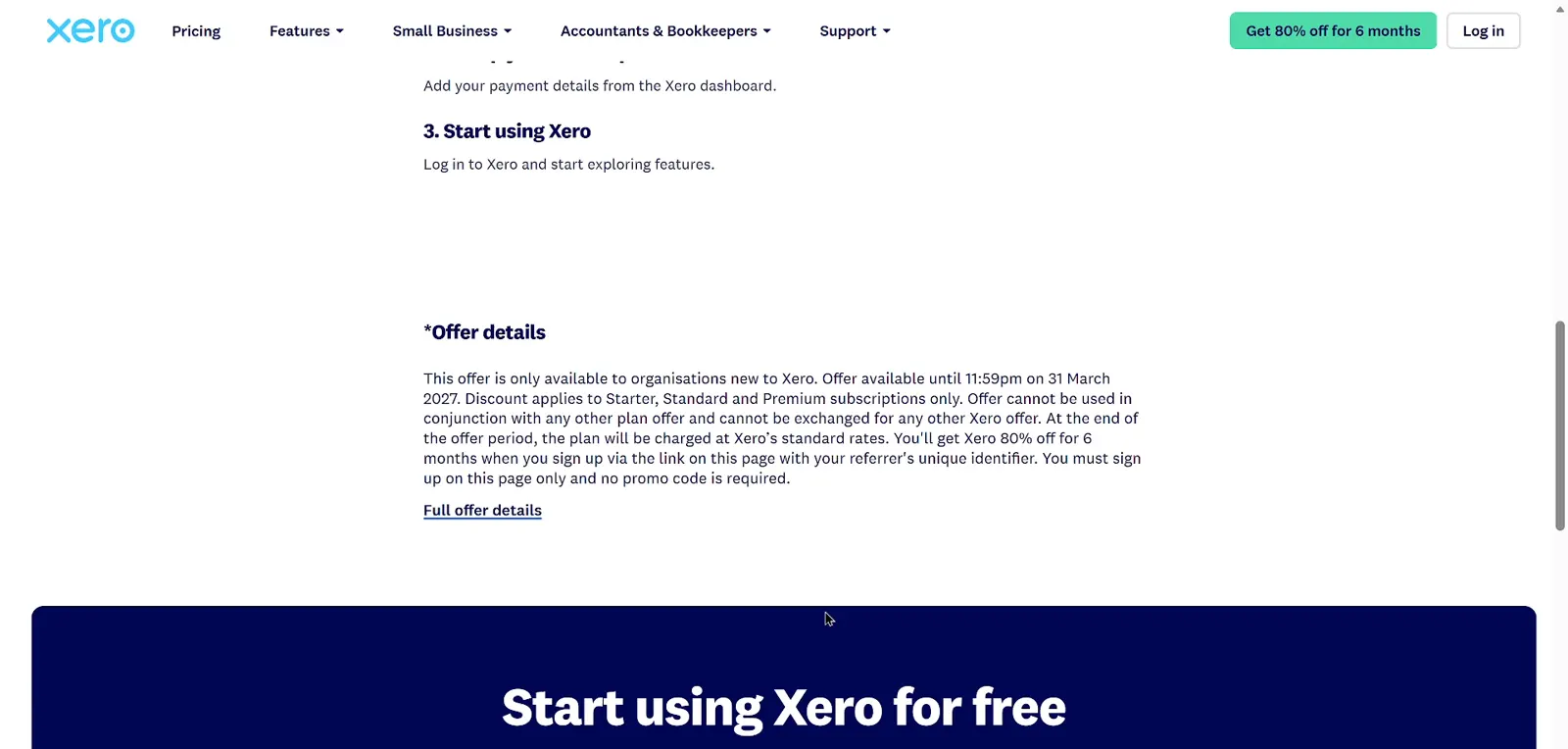
Check the terms: organisations new to Xero, available until 31 March 2027, sign up on that page, no promo code required. This is the line that matters most: "You must sign up on this page only and no promo code is required."
Fill in the sign-up form
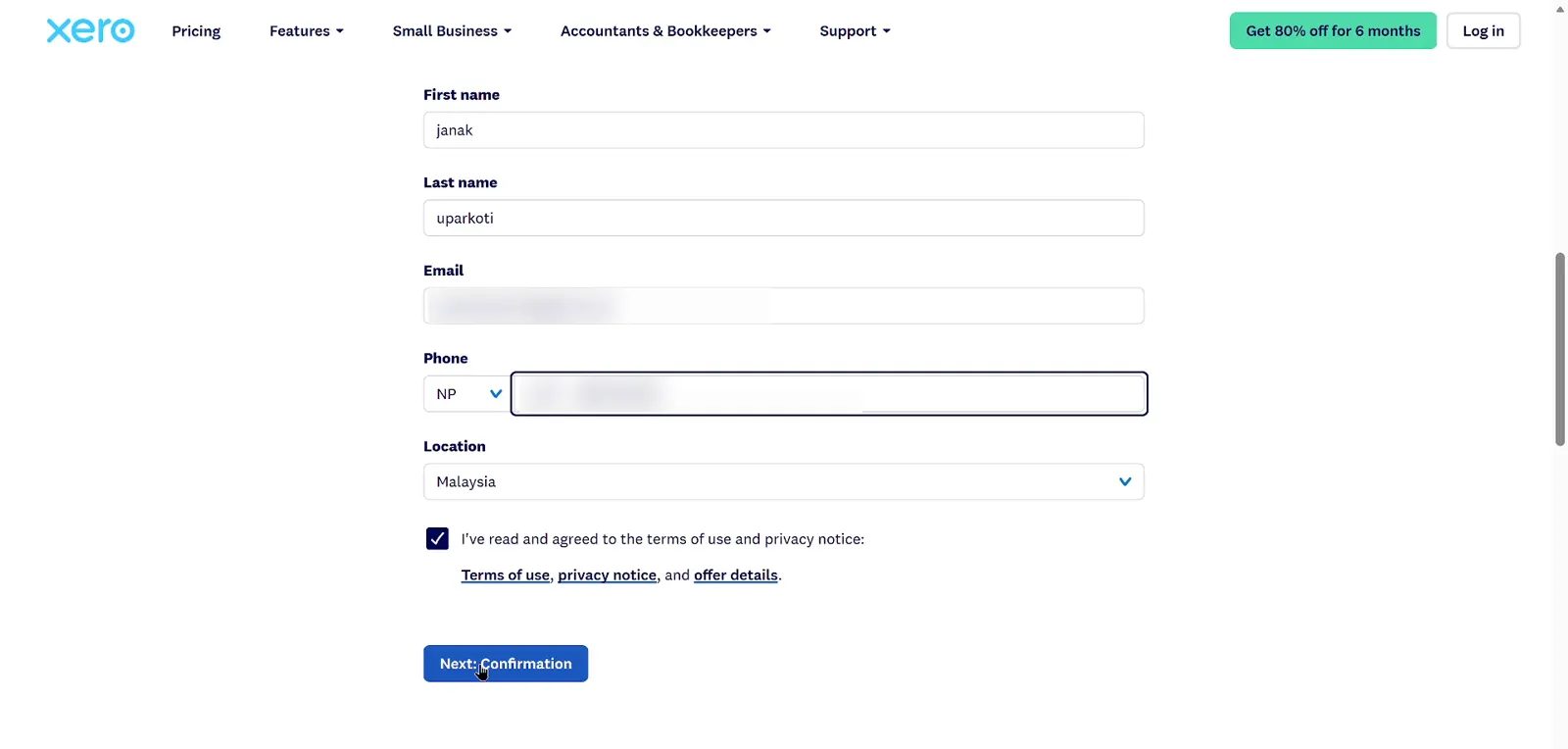
Enter your name, email, phone and location, accept the terms and click Next. Confirm your email and set a password. I blurred my email and phone. The location drop-down is where you pick your country for the account.
Add your business
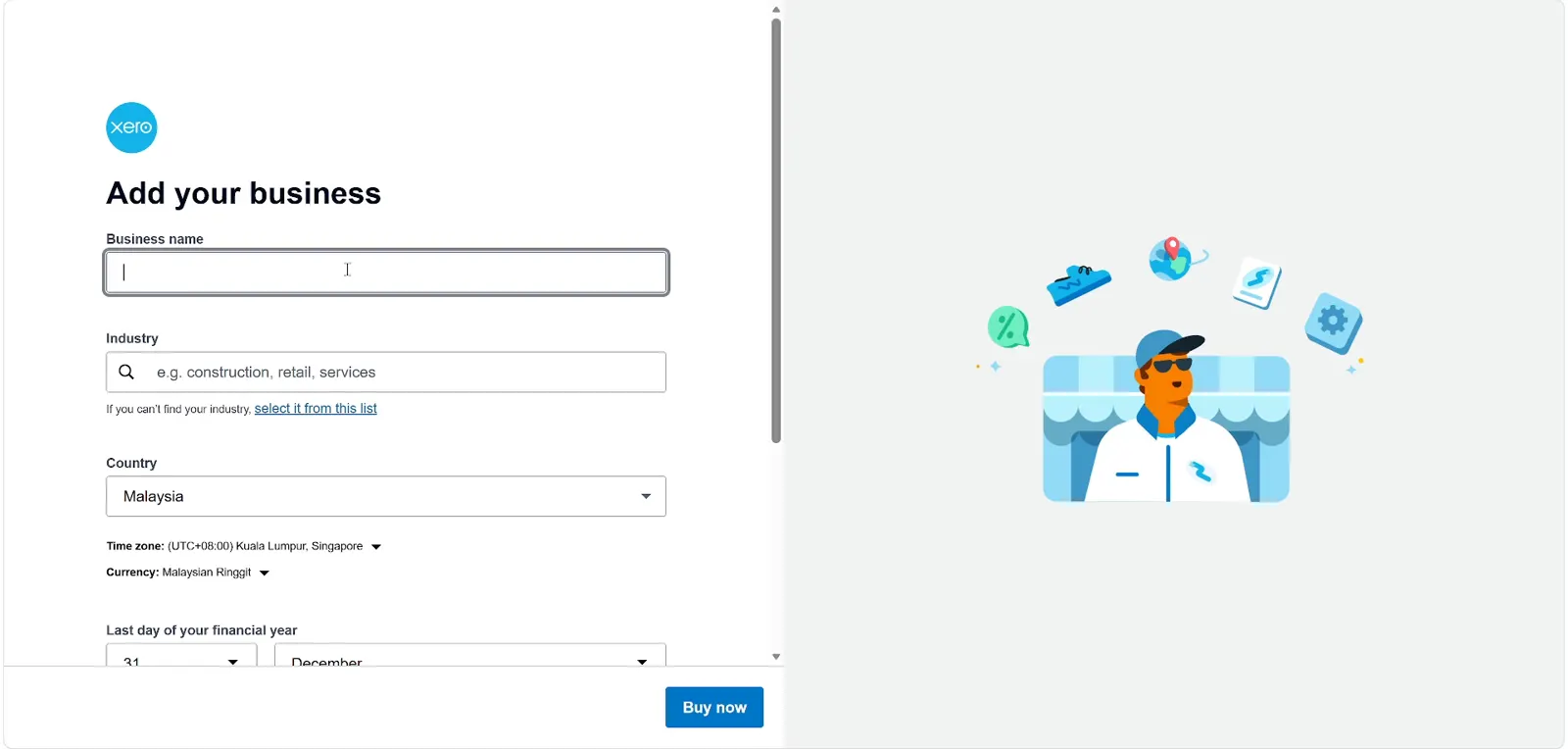
Enter the business name, industry and country. The country sets your time zone, currency and plan list. Click Buy now. Get the country right. Mine set the time zone to Kuala Lumpur and the currency to Malaysian Ringgit as soon as I chose Malaysia.
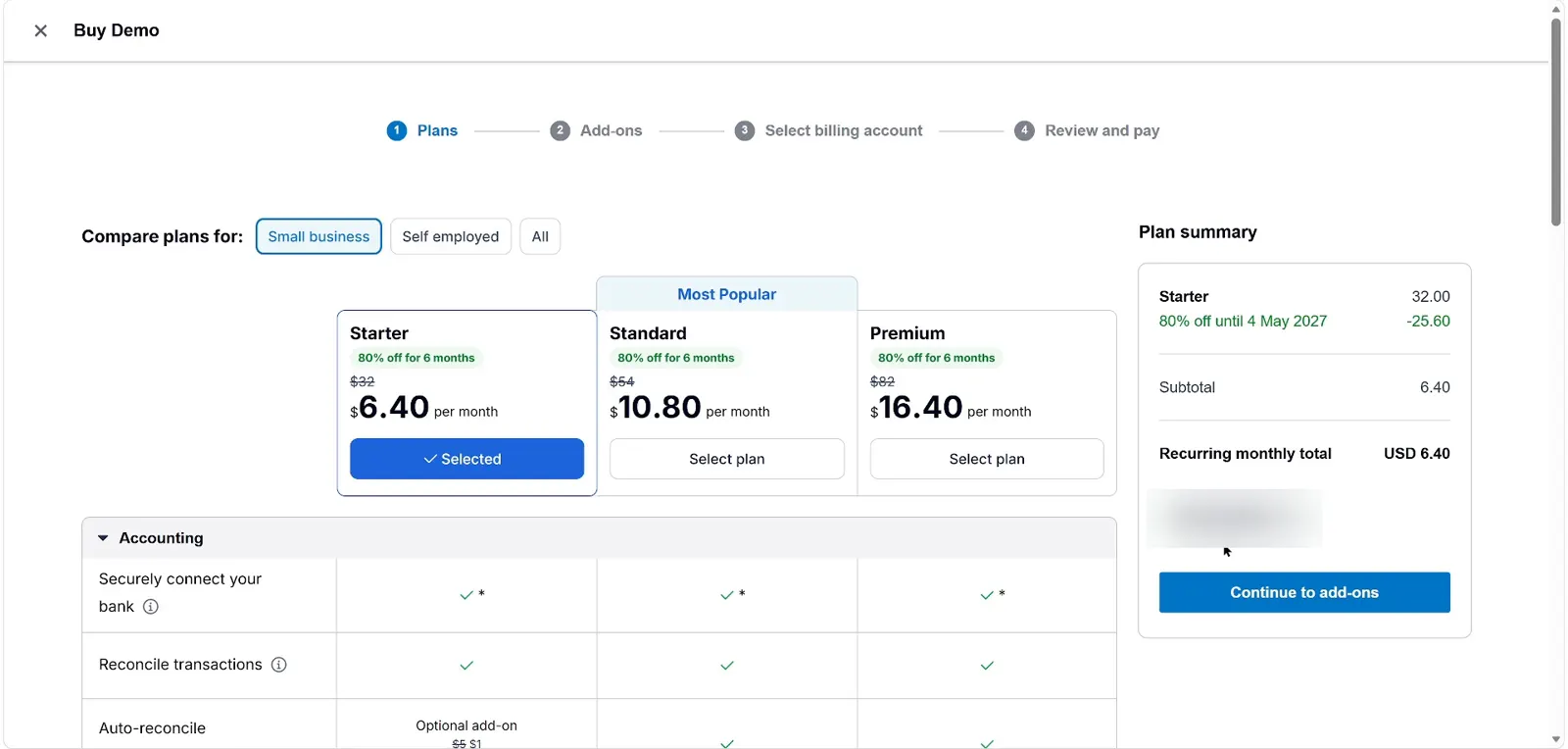
Check the discount on the plans screen
Each plan shows 80% off for 6 months, and the plan summary shows the end date and an automatically added code. Starter $6.40 (was $32), Standard $10.80 (was $54), Premium $16.40 (was $82). The summary said "80% off until 4 May 2027", and a code chip was already there (blurred here). I didn't type it.
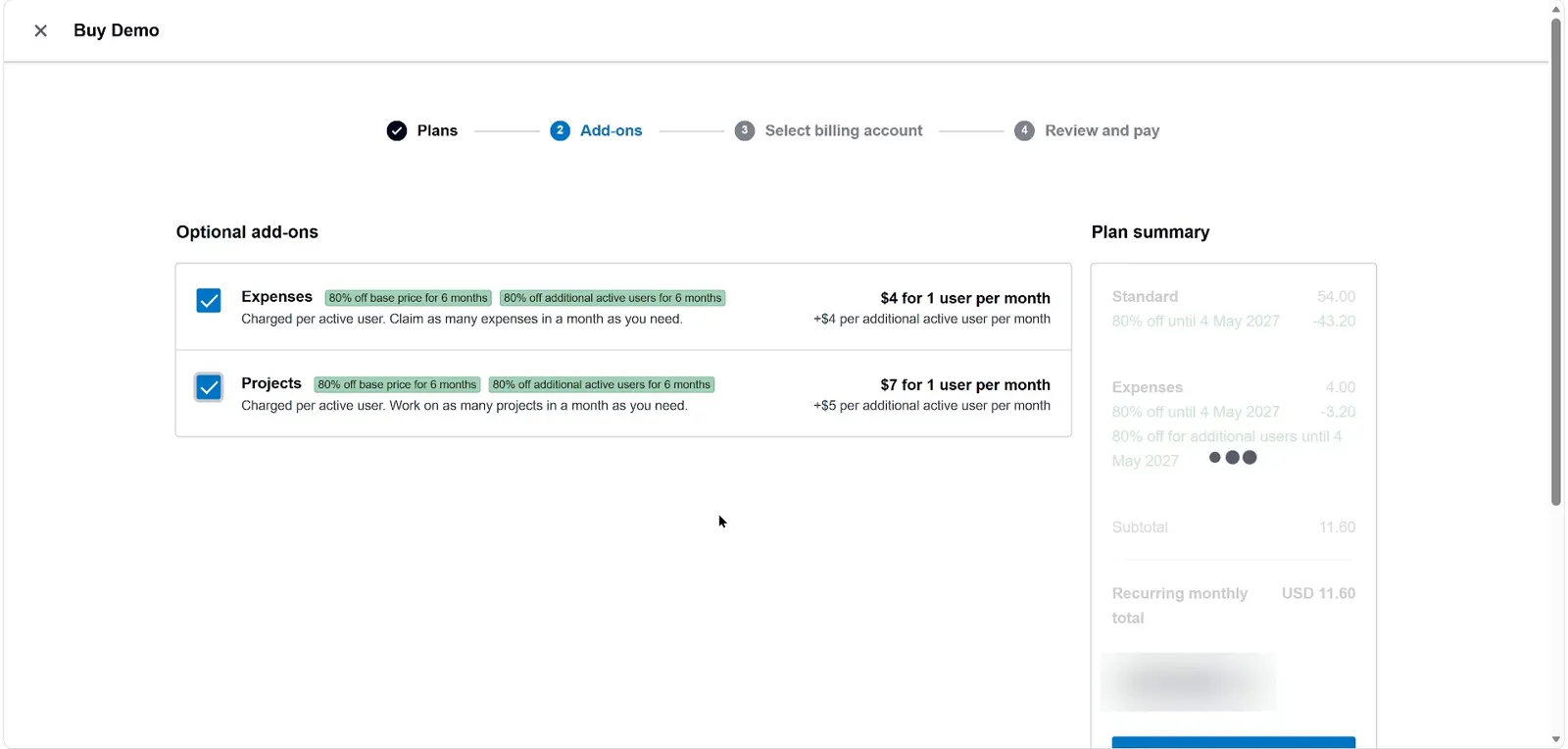
Choose add-ons if needed
Add-ons are optional and cost extra. Skip them unless you need them now. I kept Expenses to see what happens. It was discounted too: $4 down to $0.80, making my monthly total US$11.60 with Standard.
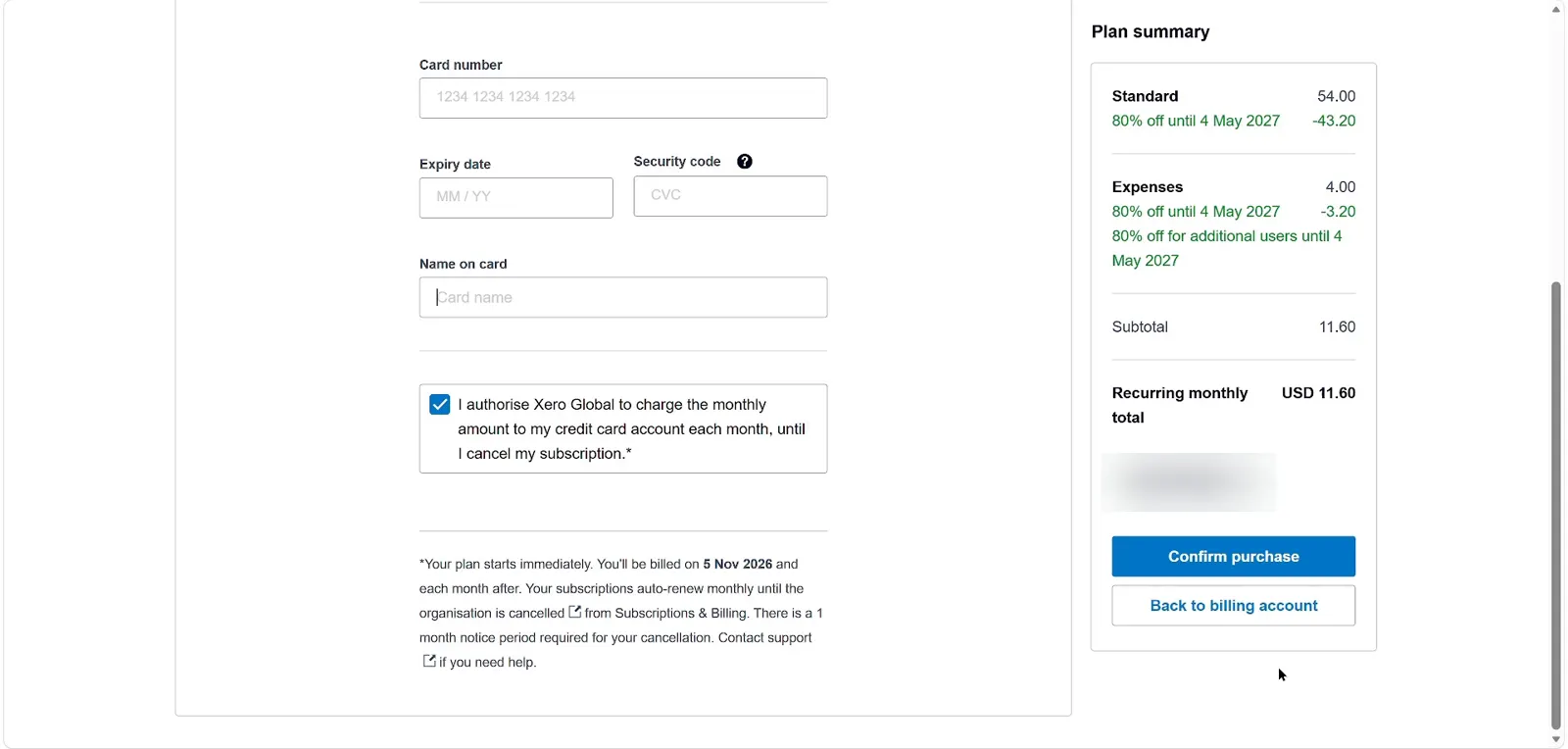
Review the terms and pay
Read the billing terms: the plan starts immediately, renews monthly and needs one month's notice to cancel. Then confirm the purchase. Read the small print: "Your plan starts immediately", billing each month after, auto-renewal, and a one-month notice period to cancel. I stopped here and didn't confirm, because I was only recording the steps.


Watch the whole sign-up
Same sign-up, start to finish, in under four minutes:

The discount isn't showing. What now?
- You opened Xero in a tab you already had. Close Xero, click the link again, and sign up from the page it opens.
- You picked a different country. The country in "Add your business" decides the plans and offer. Go back and change it.
- You've used Xero before with the same organisation. New-customer offers won't apply.
- An ad blocker or privacy extension stripped the link. Try a private window with extensions off.
- The offer changed. Xero can end offers at any time. I re-check these pages regularly, and the date at the top tells you when I last did.
Whatever happens, don't pay until the plan summary shows the discount and its end date. If it's not there, it's not going to appear on your first bill either.
After you've signed up
Two things I'd do on day one. First, put a calendar reminder a few weeks before the offer ends, so the full price never surprises you. Second, if you're in the UK, US, Australia or New Zealand, book the free setup help or watch a tutorial before you import anything. Getting bank rules right early saves hours later.
Questions people ask
Where do I enter a Xero promo code?
There's no field for it in the normal sign-up. The discount comes from the page you sign up on, and Xero adds the code to your plan summary automatically.
How do I know the Xero discount worked?
On the plans screen each plan shows a discount badge, and the plan summary shows the discount line with an end date before you pay.
Can I add a promo code after signing up?
Not that I've found. The offer has to be applied when you buy. If you missed it, contact Xero support before your first full-price bill.
Do I need a credit card to get the discount?
Yes, at the final step. The plan starts immediately once you confirm.

I make accounting software reviews and walk-throughs on YouTube, and I record every sign-up I write about. The 80% checkout screenshots on this site are from my own sign-up on 5 November 2026. I'm not an accountant, so treat this as a buyer's guide, not tax advice.